

Welcome to your blog. You can always either sign into your account and click “My Sites” then on the left hand menu click “add post”.
You can also do this by clicking the pencil icon on the top right.
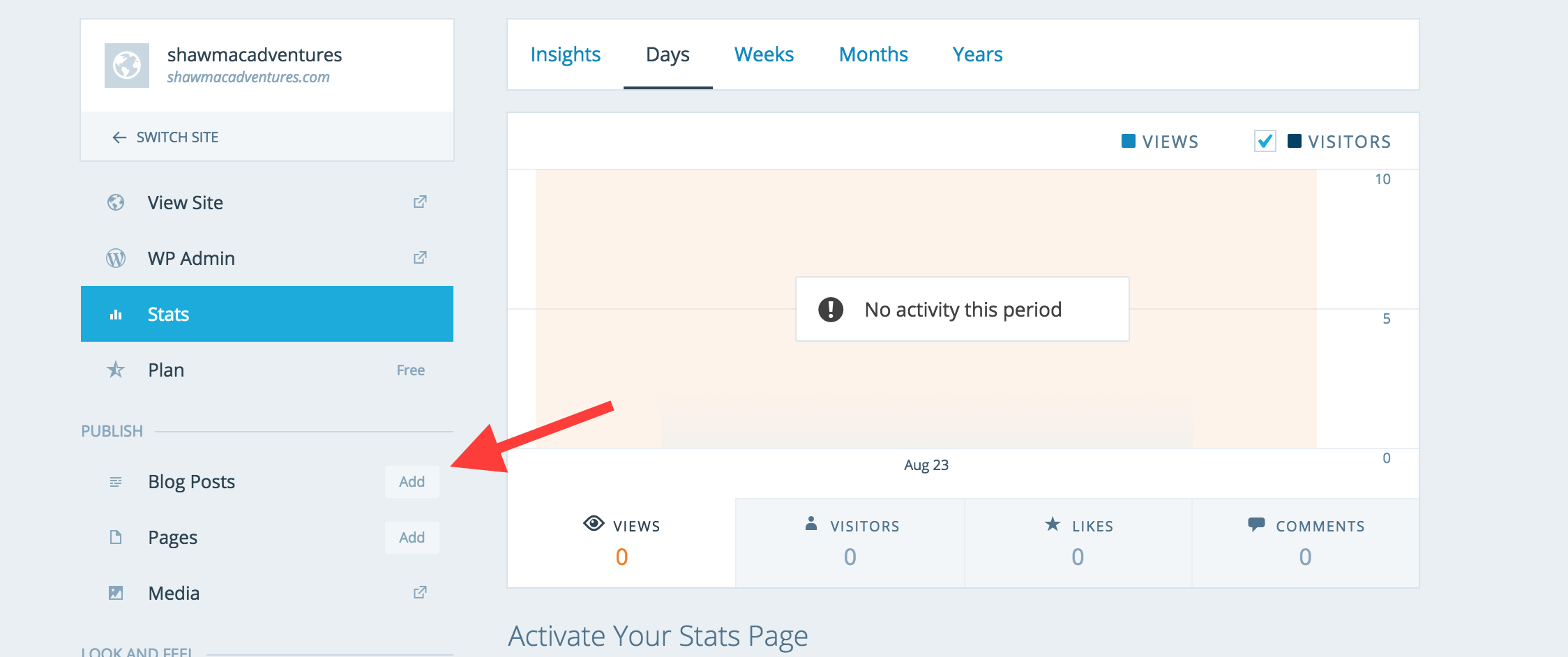
From here you will get into an editor. It has a title area and a body editor. You can put in the text and images you want. To add pictures. Click the “Add Media” button. Basically you don’t add picture or video to a post, but rather to your account which hosts that image, and then you pull in that hosted image into the post. So you will make a media library. On this free account you have 3GB of space. This is how I added the screenshot with the arrow above this.
Just beneath the red arrow you can get to the media library, where you can edit, crop, add, or delete images.
I think that’s kinda it. You can save drafts, preview the blog, or update and publish it. It is very easy to edit something that has already been published. You can also play around with the left hand column which has options on a per-post basis, like turning on or off comments, adding a location, or adding a featured image (which I did just for fun of kittens). The featured image is the image the shows up as the “main hero” image for the post, but not for the blog itself.
Other things worth knowing:
- A Slug (under advanced settings) is the last part of the URL after the /. So https://shawmacadventures.com/2015/08/23/how-to-blog/ – it’s the “how-to-blog” part
- You may want to tag or categorize things. So you may want to create a “category” of “Africa” and then add posts to that for future ease of finding ones you want.
Let me know if you have any questions.
 ShawMac Adventures